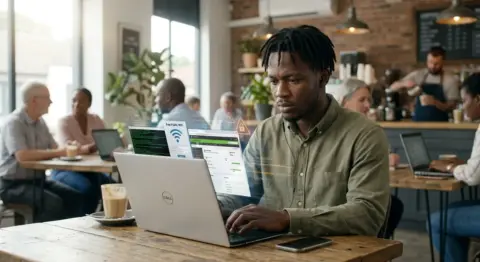


Every time I unbox a new laptop, the first thing I do is not open YouTube or connect to Wi-Fi. I go straight to securing it. Most people skip this part and pay for it later. Here is exactly what I do, and how you can do it too.
I have been in IT for over a decade. I have seen people hand over a brand new machine to a client without doing a single security configuration, and two weeks later get a call about suspicious activity. A fresh laptop is like a house with no locks installed yet. The manufacturer left some doors open, and you need to close them yourself before anyone moves in.
This is not a complicated process. You do not need to be a cybersecurity professional to follow these steps. I do this on every machine I set up, whether it is for a client, a family member, or myself. By the time I am done, I have covered the most important bases without obsessing over edge cases.
Start with a full system update
The very first thing I do after powering on a new laptop is check for system updates. Before I even connect any accounts or install any apps, the operating system needs to be current. Manufacturers sometimes ship devices with software that is already months old by the time it reaches a store shelf. Security patches released after that date are not on your machine yet.
On Windows, I go directly to Settings, then Windows Update, and let it run. On macOS, I head to System Settings and check Software Update. I do not skip this step or postpone it for later. If there are 30 updates waiting, I let them all install before moving on. This alone closes a significant number of known vulnerabilities before I do anything else.
Set up a strong local account password
A lot of people use a four-digit PIN or leave the screen lock disabled entirely on a new machine. I always set a strong password on the local account right away. This is the password that protects everything if the laptop is lost or stolen. Think of it as the front door key. A weak one defeats the whole point of having a door.
I recommend a passphrase over a complicated string of symbols. Something like “BlueMango$Typing22” is long enough to be genuinely hard to crack and still memorable enough that you will not forget it in a week. The goal is length and some complexity, not something you have to look up in a notebook every time you log in.
Pro tip from the field
I once helped a colleague recover access to a laptop they had set with a PIN they then forgot. The recovery process took two hours and nearly resulted in a full wipe. A proper password saved to a secure manager would have taken ten seconds.
Enable full disk encryption
This is probably the most important step most non-technical users skip. Full disk encryption means that even if someone pulls the hard drive out of your laptop, they cannot read anything on it without your password. On Windows, it is called BitLocker. On macOS, it is FileVault. Both are built in and both are free to enable.
On Windows, I go to the Control Panel, look for BitLocker Drive Encryption, and turn it on. The process takes a little while to encrypt the full drive in the background, but you can keep working while it runs. On a Mac, FileVault is usually in the Privacy and Security section of System Settings. The key thing is to save the recovery key somewhere safe, not on the same laptop you are encrypting. I store mine in a password manager.
Install a reputable password manager
I install a password manager before I install anything else. Every account I set up on this machine from this point forward will use a unique, randomly generated password. This eliminates the habit of reusing the same password across different websites, which is still one of the top causes of account breaches. I have personally seen this go wrong for people more times than I can count.
I personally use Bitwarden because it is open source, well-audited, and has a solid free tier. 1Password is also excellent if you want something more polished. The browser extension makes it seamless. You log in once when you start your browser and the manager handles everything else. Within a week of using one it becomes second nature.
Turn on the firewall and review privacy settings
Both Windows and macOS come with a built-in firewall that is sometimes not fully enabled by default. I always verify it is on. On Windows, I check the Windows Defender Firewall status in the Control Panel. On macOS, it is under Privacy and Security in System Settings. The firewall acts as a gatekeeper for incoming connections, so I want to make sure it is active before this machine connects to any public network.
While I am in the privacy settings, I also review which apps have access to the microphone, camera, location, and contacts. A fresh install sometimes has more permissions opened than necessary. I go through each category and revoke anything that does not have a clear reason to need it. This takes about five minutes and is worth every second.
Set up two-factor authentication on key accounts
Before I leave the machine on its own, I enable two-factor authentication on the most important accounts. That means email, any cloud storage like Google Drive or iCloud, and anything financial. A password alone is not enough protection for accounts that hold sensitive information. Two-factor means that even if someone gets your password, they still cannot get in without a second code from your phone.
I use an authenticator app rather than SMS codes. Apps like Ente Auth or Aegis on Android are more secure than text messages because SIM swapping is a real attack that bypasses SMS-based verification. Setting up authenticator apps on four or five key accounts takes maybe ten minutes once you know the process. The peace of mind is worth far more than that.
Install updates for browsers and core apps
Once the OS is updated and the security foundations are in place, I install the browser I actually use and immediately update it. Browsers are one of the most targeted pieces of software on any machine because they handle so much data. Running an outdated browser is like leaving a window open on the ground floor. I also check that any pre-installed applications from the manufacturer are either updated or uninstalled if I do not need them.
I tend to uninstall a lot of the bundled software that comes on new laptops. Manufacturer-installed apps are often outdated and sometimes come with their own security concerns. If I do not recognise something or do not plan to use it, it gets removed. A cleaner machine with less software is easier to secure and maintain.
What I always tell clients
Keep it simple. You do not need fifteen different security tools. A good password manager, disk encryption, an active firewall, and two-factor on critical accounts will put you ahead of the majority of users out there.
That is genuinely the whole process. Most of these steps take only a few minutes each. The first time you do it might take closer to 45 minutes because you are learning the layout of your settings. After that it becomes fast and almost automatic. I can now set up a machine for a client and have it properly secured before their tea goes cold.
If you only do one thing from this post, make it disk encryption. If you do two, add a password manager. Everything else builds on top of those. Security is not about being perfect. It is about making yourself a harder target than the next person, and these steps do exactly that.